




Learn About Insights
Learn About Insights
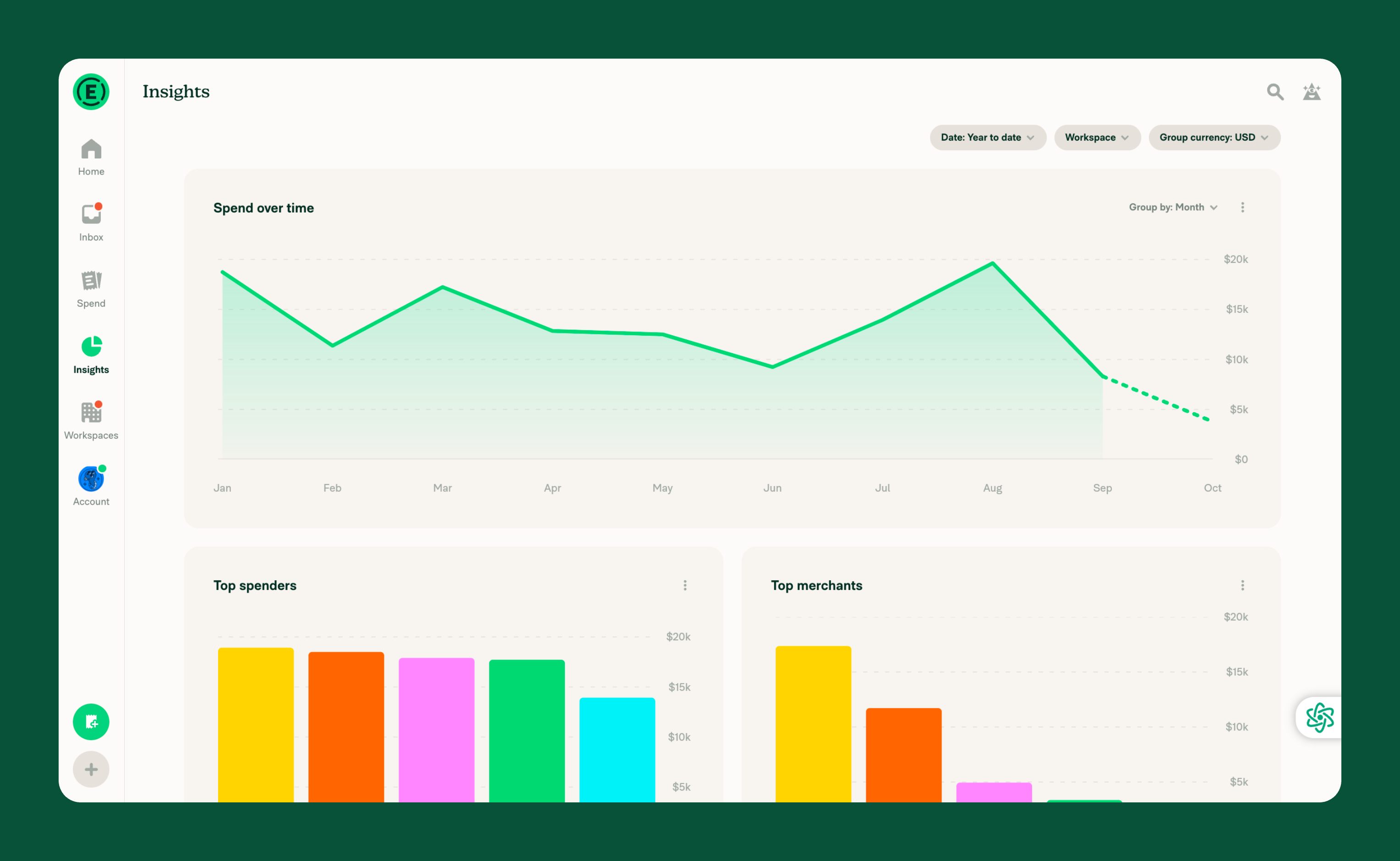
Insights help you understand spending patterns, track changes over time, and identify where money is being spent. They summarize expense data in visualizations so you can quickly see spending trends, compare expenses across members, merchants, and categories, and identify areas that may need closer review.
What insights are available
Insights includes visualizations that help you understand spending from different perspectives:
- Spend over time shows how total spending changes over a selected period, helping you identify trends and unusual increases or decreases.
- Top spenders shows which members have the highest total spending, helping you identify high spenders and monitor spending patterns by member.
- Top merchants shows which merchants account for the most spending, helping you understand where money is being spent and identify recurring vendor expenses.
- Top categories shows which expense categories account for the most spending, helping you understand spending by expense type and identify opportunities to adjust budgets.
All insights share the same Date, Workspace, and Group currency filters, so you can compare spending across the same period, workspaces, and currency.
Who can see Insights
Insights are available to all members, but the data you see depends on your permissions in Expensify.
- Workspace admins and auditors can see expenses across their workspaces.
- Approvers can see expenses submitted to them for approval.
- Members can see their own expenses.
Some insights have additional requirements:
- Top spenders is available to workspace admins, auditors, and approvers on workspaces with at least two members.
- Top categories appears only when a workspace you can access has categories enabled.
Insights that don’t meet these requirements won’t appear.
How Insights and Spend work together
Insights and Spend provide different ways to explore the same expense data.
- Insights summarizes spending in visualizations, helping you identify trends and understand which members, merchants, or categories account for the most spend.
- Spend provides the underlying expense and report details, where you can search, review, and take action on specific expenses.
You can open an insight’s underlying results in Spend by selecting More (⋮) > View on Spend to investigate spending patterns, apply additional filters, or explore expenses beyond those displayed in a visualization.


